Markbook
Guides about KAMARs markbooks.
The markbook menu is split into two halves.
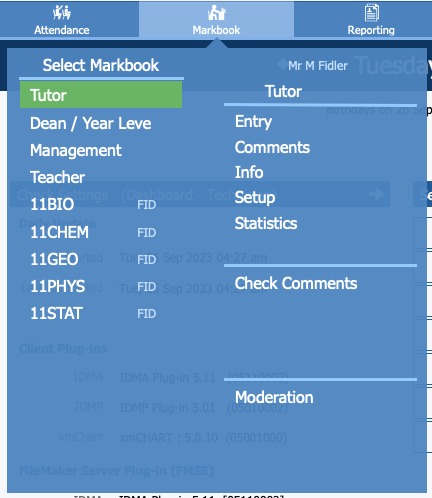
On the left, any of the 'special' markbooks that have been assigned to you will show. Below those are all of your subject markbooks in an alphabetical list. The line the subject is on and the 'class on line' numbers for each markbook are
displayed.
On the right, the five options for your selected markbook are listed:
- Entry - enter marks and comments, view markbook summaries, and more.
- Comments - enter subject comments to be displayed in a selected progress report.
- Info - view a range of assessment information about the students in your selected markbook.
- Setup - manage the setup of your selected markbook, including adding more assessments.
- Statistics - analyse assessment information from your selected markbook.
Below this list are three additional options:
- Select Markbook - this option takes you to a screen where, depending on your permissions, you can select markbooks for other teachers.
- Check Reports - depending on your role, this option takes you to one of the 'special' markbooks so you can manage comments for progress reports.
- Moderation - with access lets you complete moderation for internal assessments for specific teachers and/or subjects.